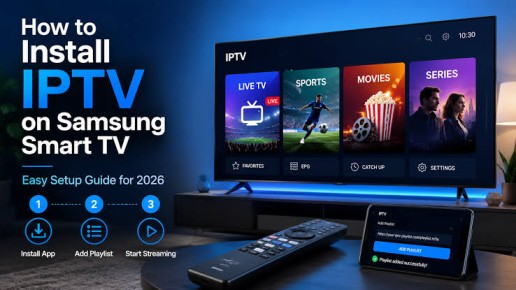
IPTV (Internet Protocol Television) has become one of the most popular ways to stream live TV channels, movies, sports, and on-demand content through an internet connection. Unlike traditional cable or satellite TV, IPTV allows users to watch content online using various devices such as Smart TVs, smartphones, tablets, laptops, and streaming boxes.
If you are new to IPTV, this complete setup guide will help you install and configure IPTV on different devices quickly and easily.
What is IPTV?
IPTV stands for Internet Protocol Television, a technology that delivers television content over the internet instead of traditional cable or satellite systems. With IPTV, users can access live television channels, video-on-demand libraries, and premium entertainment services from almost anywhere.
IPTV services usually provide users with either an M3U Playlist URL, Xtream Codes API, or a dedicated app login for streaming.
What You Need Before IPTV Setup
Before starting the IPTV installation process, make sure you have:
- A stable high-speed internet connection
- IPTV subscription from a provider
- IPTV login details (M3U URL or Xtream Codes)
- A compatible device (Smart TV, Android Box, Firestick, Mobile, PC)
- IPTV player application installed on your device
Best IPTV Apps for Setup
1. IPTV Smarters Pro
One of the most popular IPTV applications. Supports live TV, movies, EPG, and Xtream Codes login.
2. TiviMate
Excellent interface designed mainly for Android TV and streaming devices.
3. VLC Media Player
A simple option for PC users who want to stream IPTV channels using M3U playlist links.
How to Set Up IPTV on Smart TV
Follow these steps:
Step 1: Open your TV app store
Step 2: Install an IPTV player such as IPTV Smarters Pro
Step 3: Open the application
Step 4: Select login method (M3U Playlist or Xtream Codes)
Step 5: Enter subscription details provided by your IPTV service
Step 6: Save and refresh channels
Step 7: Start watching live TV
How to Set Up IPTV on Android Phone
Steps:
- Install IPTV Smarters Pro from the app store
- Open the app
- Add playlist URL or Xtream login
- Load channels
- Start streaming content
How to Set Up IPTV on Fire TV Stick
Steps:
- Install IPTV player app
- Open application
- Enter IPTV account details
- Load playlist
- Enjoy live channels and movies
Common IPTV Setup Problems
Users sometimes face setup issues. Common problems include:
- Slow internet causing buffering
- Incorrect playlist URL
- Expired subscription
- App compatibility issues
- Server connection errors
- Device storage problems
Always double-check login credentials and internet speed before troubleshooting.
Tips for Better IPTV Streaming
For smoother streaming experience:
- Use internet speed above 20 Mbps
- Connect through stable WiFi or Ethernet
- Keep IPTV application updated
- Restart device if channels do not load
- Use compatible modern streaming devices
Final Thoughts
IPTV is an excellent alternative to traditional cable television and offers more flexibility for watching content anywhere. Setting up IPTV is simple once you have the correct subscription details and the right application.
Whether you are using a Smart TV, Android phone, Firestick, or PC, following the correct setup process ensures a smooth streaming experience.
With proper installation and a stable internet connection, IPTV can provide unlimited entertainment at your fingertips.